
DuckDB Basics: Importing Data
Honestly, DuckDB can import just about anything

This is part of a series of articles about the basics of DuckDB. I’m really excited to dive into the different aspects of this transformational technology. Let’s get to it!
Note: This article assumes you know the basics of a terminal, curl commands and how databases work for the most part. But I do my best to bring you in if you don’t. If you aren’t familiar with DuckDB you should read my first article about using SQL in the DuckDB CLI tool.
If there’s one word I would use to describe DuckDB, it would be “elegance.” That’s because DuckDB doesn’t just choose elegant designs for its internals (see DuckLake’s inlining feature or DuckDB’s memory allocation model). It also reduces cognitive load for the user.
I don’t think there’s a better example of this elegance on display than how DuckDB reads and imports data. We will go through a number of ways you can read and import data, as well as the different file formats DuckDB can read, without adding unnecessary function calls or extra arguments.
DuckDB Extensions
It’s important to note that we will be working with DuckDB extensions in this article. Specifically, the “core” extensions that DuckDB offers. Extensions enhance DuckDB’s capabilities. The core extensions are maintained by DuckLabs, which also maintains DuckDB. There are also “community” extensions created and maintained by third parties. These have different levels of commitment from maintainers, so we will not use them in this article.
What Exactly Can We Import Using DuckDB?
Short answer, A LOT OF THINGS. While I won’t go into every single one in this article, here’s the list from DuckDB’s official page.
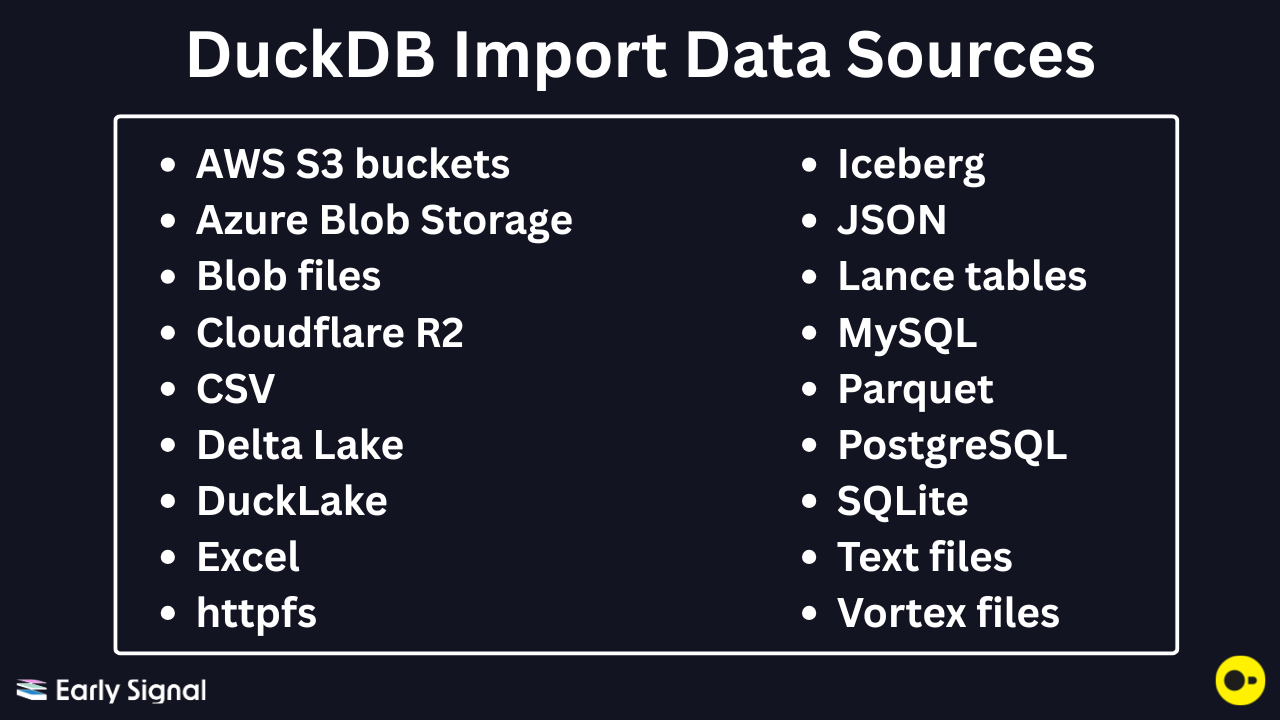
Some of these are file locations (S3, Azure, Cloudflare, httpfs) while others are databases (Postgres, MySQL, SQLite, DuckLake) or file formats. I will use these three high level buckets for our examples.
Read and Import Local Files
We will start by reading local files on your computer. You may have manually downloaded data from a tool or GitHub repo, or you may have been sent a dataset to work with. Either way, it is stored on your computer, and you can now use DuckDB to read it.
Note: DuckDB can read directly from multiple data sources and return results in the DuckDB session. This does not create a persistent table that you can use in the future. We use the CREATE command to create tables that can be referenced later instead of querying the data source. This helps us reduce potential costs associated with reading the data source, and it also improves read speed when querying a table in a DuckDB session versus a data source.
Parquet files
Parquet files are arguably the most efficient file format to query with DuckDB. When I’ve benchmarked reading a Parquet file against reading directly from a DuckDB table, results have been about the same. Incredibly impressive!
With that, you just pass the path to the Parquet file into a SELECT statement, and you’re good to go.
Note: Before running SQL commands always start a DuckDB session first by typing ‘duckdb’
# initialize DuckDB
duckdb
# read from a local Parquet file
SELECT * FROM 'test.parquet';
# read all Parquet files in a path
SELECT * FROM 'test/*.parquet';
# CREATE a DuckDB table from a local Parquet
CREATE TABLE test AS SELECT * FROM 'test.parquet';It really is that easy, and it’s the first place to start to understand what DuckDB is all about. When you CREATE a DuckDB table from a local file, you can then query that table.
# CREATE a DuckDB table from a local Parquet
CREATE TABLE test AS SELECT * FROM 'test.parquet';

# read from new DuckDB table
FROM test;
Note: With DuckDB, you don’t have to add the ‘SELECT’ command if the statement is a select-all statement. Simply type FROM and the table name. It saves you keystrokes!
CSV Files
Comma-separated value (CSV) files have some extra options when reading them that are worth going over. DuckDB offers a nice CSV file you can download here.
To start out, you can read from the CSV just like you did with the Parquet file and CREATE a table from it. If you work with CSV data a lot, then you realize that schemas can be weird. DuckDB will auto-infer the schema if you don’t add any additional parameters to the SELECT statement.
# read from the downloaded csv and auto infer schema
SELECT * FROM 'flights.csv';

# CREATE table with auto infer schema
CREATE TABLE ontime AS SELECT * FROM 'flights.csv';

# read from the new table
FROM ontime;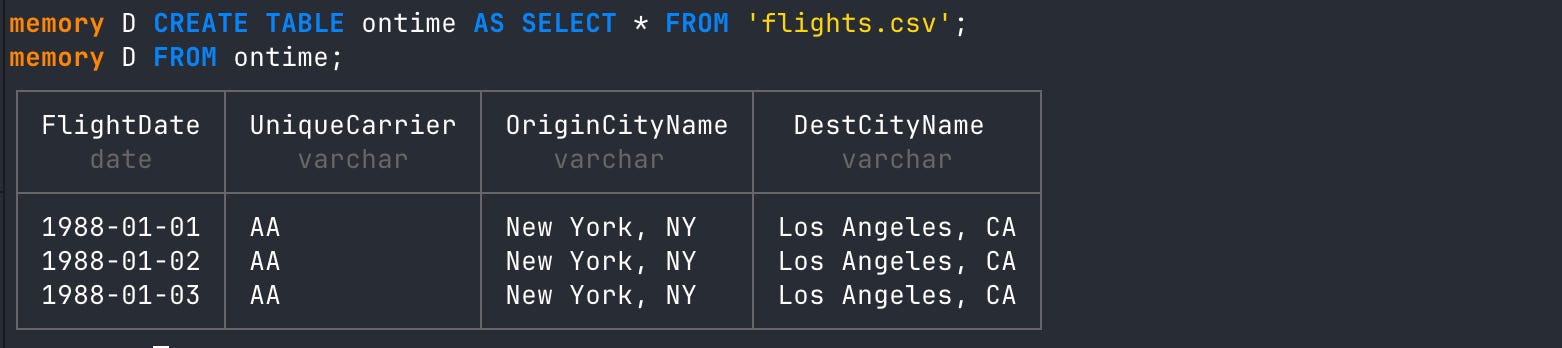
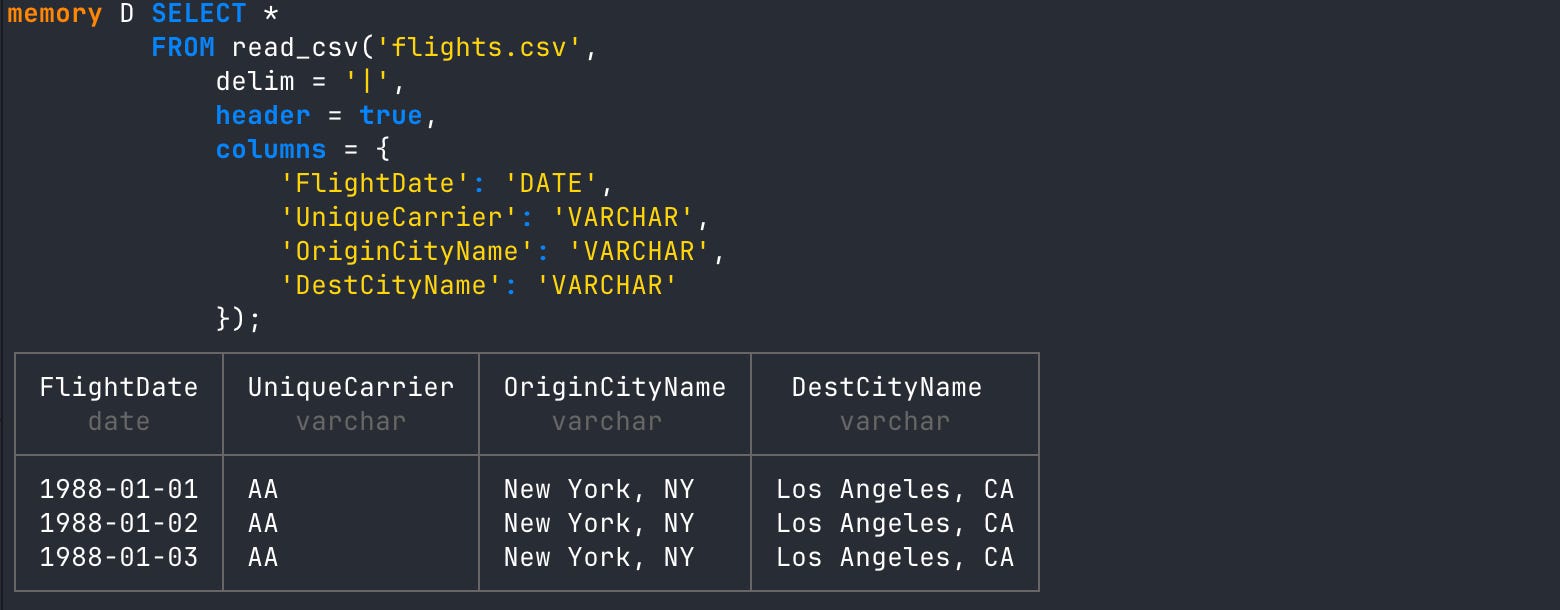
If your CSV schema is wacky (happens all the time), you can add the schema to the read statement by using the read_csv() function with the SELECT statement.
SELECT *
FROM read_csv('flights.csv',
    delim = '|',
    header = true,
    columns = {
        'FlightDate': 'DATE',
        'UniqueCarrier': 'VARCHAR',
        'OriginCityName': 'VARCHAR',
        'DestCityName': 'VARCHAR'
    });
When you CREATE a DuckDB table from a CSV that needs the schema explicitly defined, first create the table, add the schema, then use DuckDB’s COPY command to load the data into the table.
# create a new table with a schema
CREATE TABLE ontime (
    FlightDate DATE,
    UniqueCarrier VARCHAR,
    OriginCityName VARCHAR,
    DestCityName VARCHAR
);

# copy the csv data into the table
COPY ontime FROM 'flights.csv';

# read from new table
If there’s even more wackiness going on with your CSV then DuckDB also has a nice tips page you can reference HERE.
JSON Files
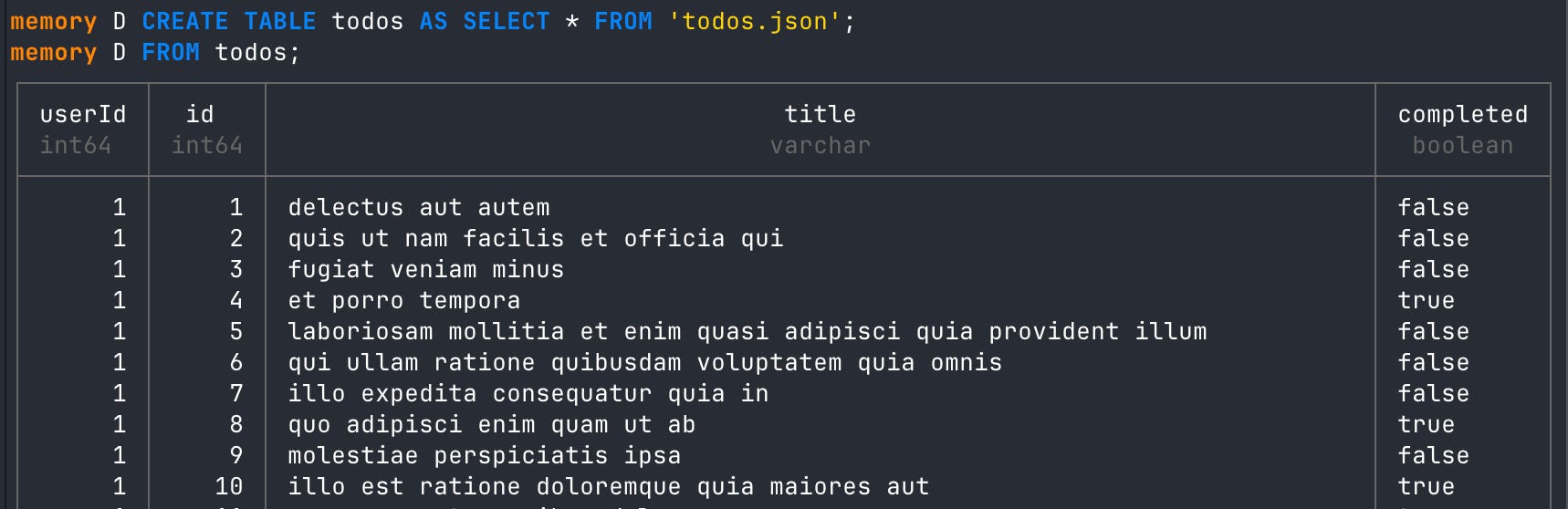
JSON can have similar schema/shape issues that plague CSV files. Similarly, DuckDB offers auto-inference as well as options to explicitly define what the schema looks like. DuckDB also provides sample JSON you can download and save as a local file here.
# read from JSON with auto infer
SELECT * FROM 'todos.json' LIMIT 5;

# create table from local json
CREATE TABLE todos AS SELECT * FROM 'todos.json';

# read from DuckDB table
FROM todos;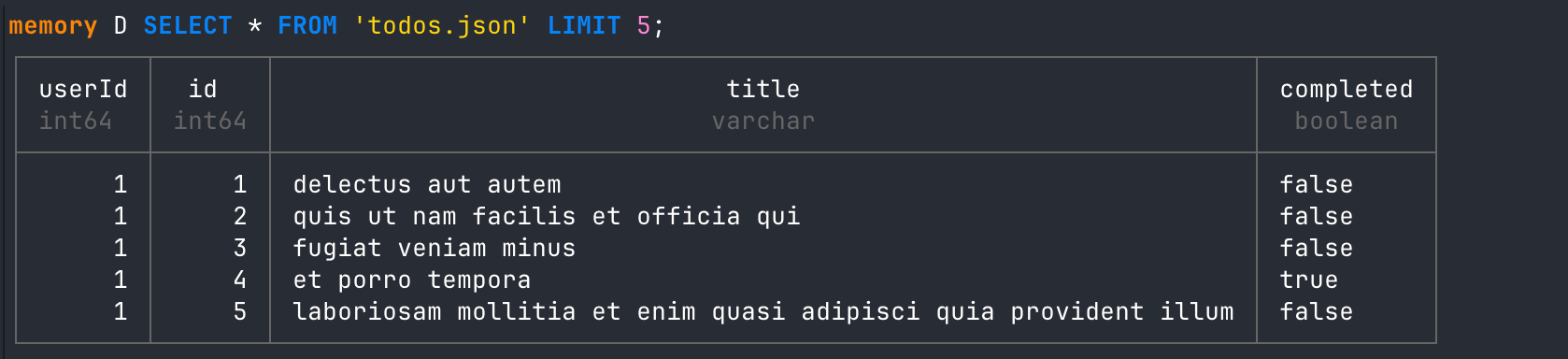
There are all kinds of extras about JSON at the DuckDB page here.
Text and Markdown Files
A really interesting feature DuckDB offers is the ability to read a .txt or a .md file. It’s also an example of where we leverage a DuckDB function instead of a core extension handling it behind the scenes.
# read content from a local txt file
SELECT content FROM read_text('earlysignal.txt');
When reading files directly, you have different options for what you might want returned to you. For example, we can query the file size, parse the file path, and get the file contents.
# get file size, path and content of txt file
SELECT size, parse_path(filename), content FROM read_text('earlysignal.txt');
We can also pass a wildcard to get that information for all txt files in a folder. We can then save that to a DuckDB table!
# get file size, path and content for all txt files
SELECT size, parse_path(filename), content FROM read_text('*.txt');

# turn into a new DuckDB table
CREATE TABLE texts AS SELECT size, parse_path(filename), content FROM read_text('*.txt');

# query new table
FROM texts;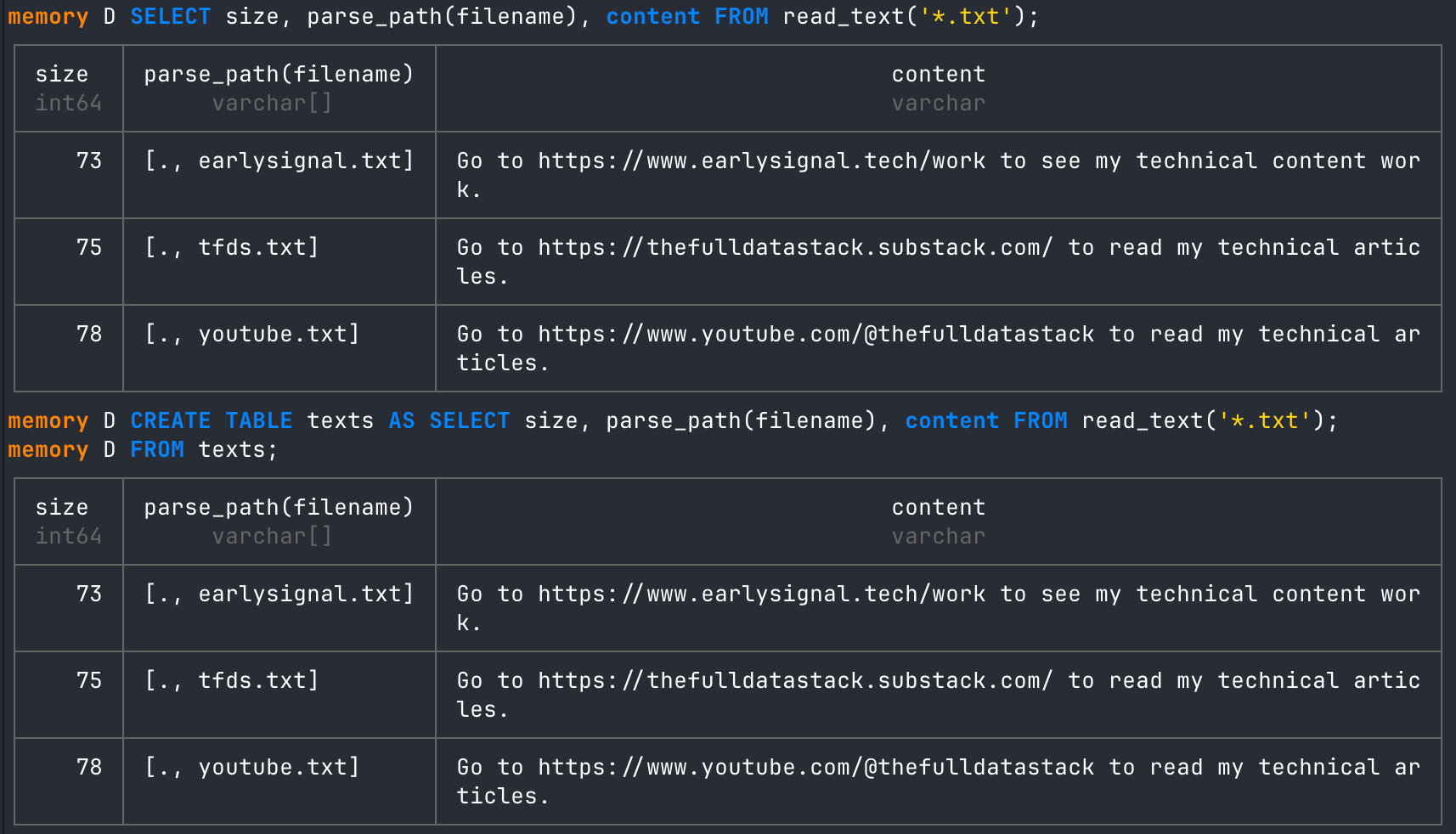
You can use the exact same patterns for a Markdown file as well. For example, if you have a README from GitHub and you’d like to add the same information to the table we made above, we can INSERT it into the table.
# read from markdown file first
SELECT size, parse_path(filename), content FROM read_text('example.md');

# insert the markdown data intot the texts DuckDB table
INSERT INTO texts SELECT size, parse_path(filename), content FROM read_text('example.md');

# query table
FROM texts;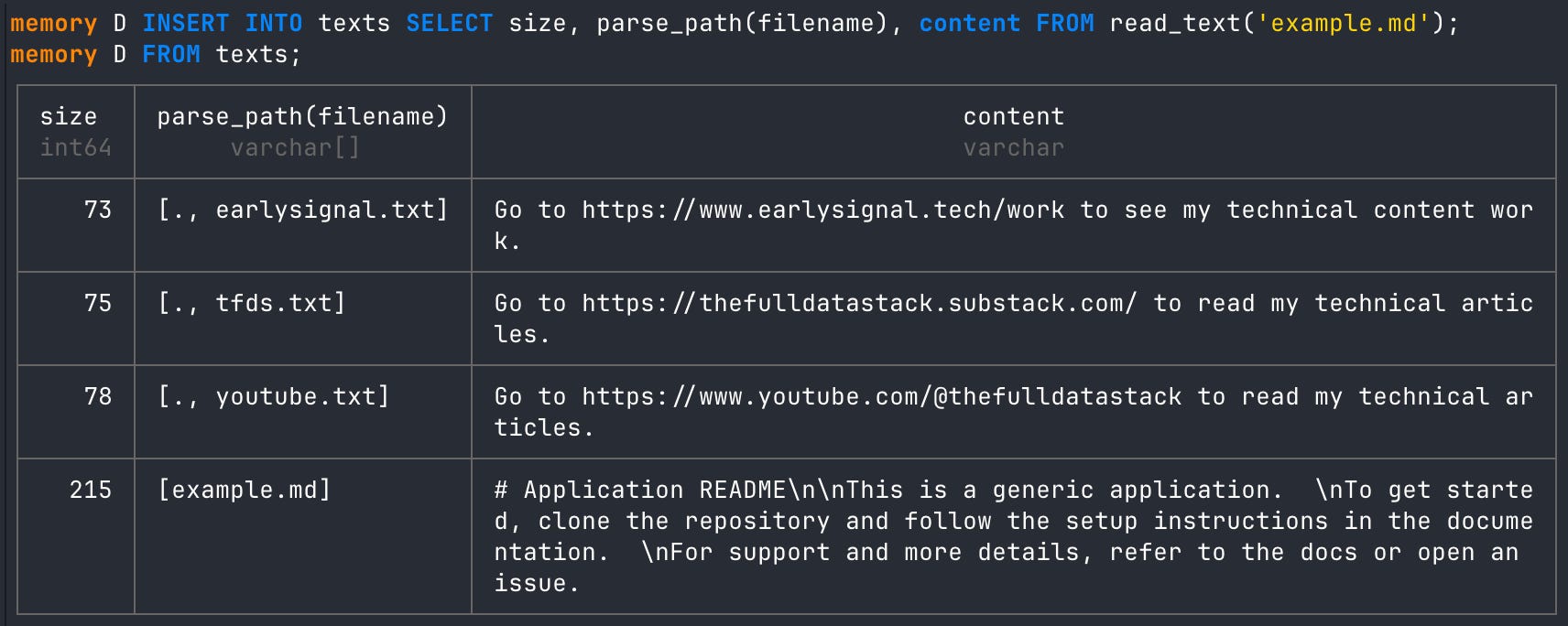
Read and Import From File Locations
Reading from a file location is probably the most impressive way DuckDB allows you to import data. Specifically with S3, it’s genuinely shocking how easy it is to import data from a file in S3 storage to your local computer (or wherever else DuckDB is running).
I don’t use Azure or Cloudflare, but click on those links to get to the documentation. The S3 example should give you a good idea of what to expect.
Configuration and Authentication
If you’re going to read data from a storage bucket like S3, you’re going to need to provide credentials, unless the storage bucket is public. Normally, you do something like run “export=path-to-key” in your terminal or keep a ‘.env’ file in your local folder with your credentials in it. This is standard and works just fine, but DuckDB goes out of its way to try to make that a little easier. It offers a built-in secrets manager you can run right in its CLI.
# open an in memory instance of duckdb
duckdb;

# create temp credentials
CREATE OR REPLACE SECRET secret (
    TYPE s3,
    PROVIDER config,
    KEY_ID 'AKIAIOSFODNN7EXAMPLE',
    SECRET 'wJalrXUtnFEMI/K7MDENG/bPxRfiCYEXAMPLEKEY',
    REGION 'us-east-1'
);
The above command is going to create temporary credentials in the in-memory DuckDB instance we created. We can view the secrets using the duckdb_secrets() function and a FROM statement right in DuckDB.
# read created secrets table
FROM duckdb_secrets();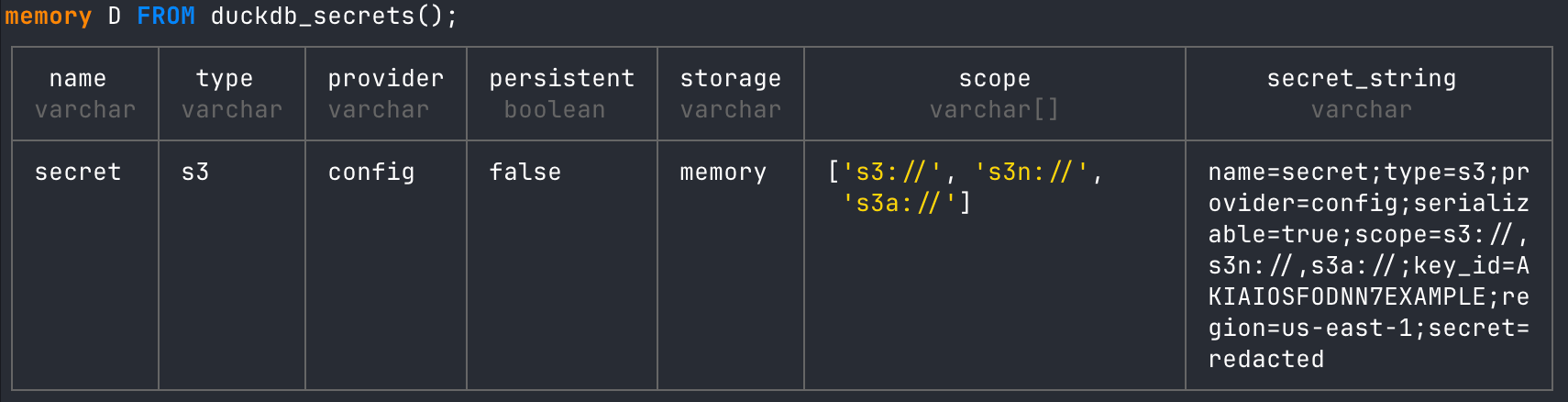
Creating credentials for S3 this way will be scoped only to the DuckDB instance in your terminal at the time. If you want credentials that are saved across DuckDB sessions, you can create a persistent secret.
# create
CREATE PERSISTENT SECRET my_persistent_secret (
    TYPE s3,
    PROVIDER config,
    KEY_ID 'AKIAIOSFODNN7EXAMPLE',
    SECRET 'wJalrXUtnFEMI/K7MDENG/bPxRfiCYEXAMPLEKEY',
    REGION 'us-east-1'
);
You’ll then see secrets are being stored locally.
FROM duckdb_secrets();
By default, this will write the secret (unencrypted) to the ~/.duckdb/stored_secrets directory. But you can also change this directory if you want to.
SET secret_directory = 'path/to/my_secrets_dir';And you can delete persistent secrets whenever you need to.
DROP PERSISTENT SECRET my_persistent_secret;Reading From an S3 Bucket
Once you create secrets for your S3 bucket, you can pass the URI into a SELECT statement in the CLI. Remember, you can also pass a public file in S3. I’ll illustrate this using a public file URI from MotherDuck’s S3.
SELECT * FROM 's3://motherduck-demo/pypi.small.parquet' LIMIT 10;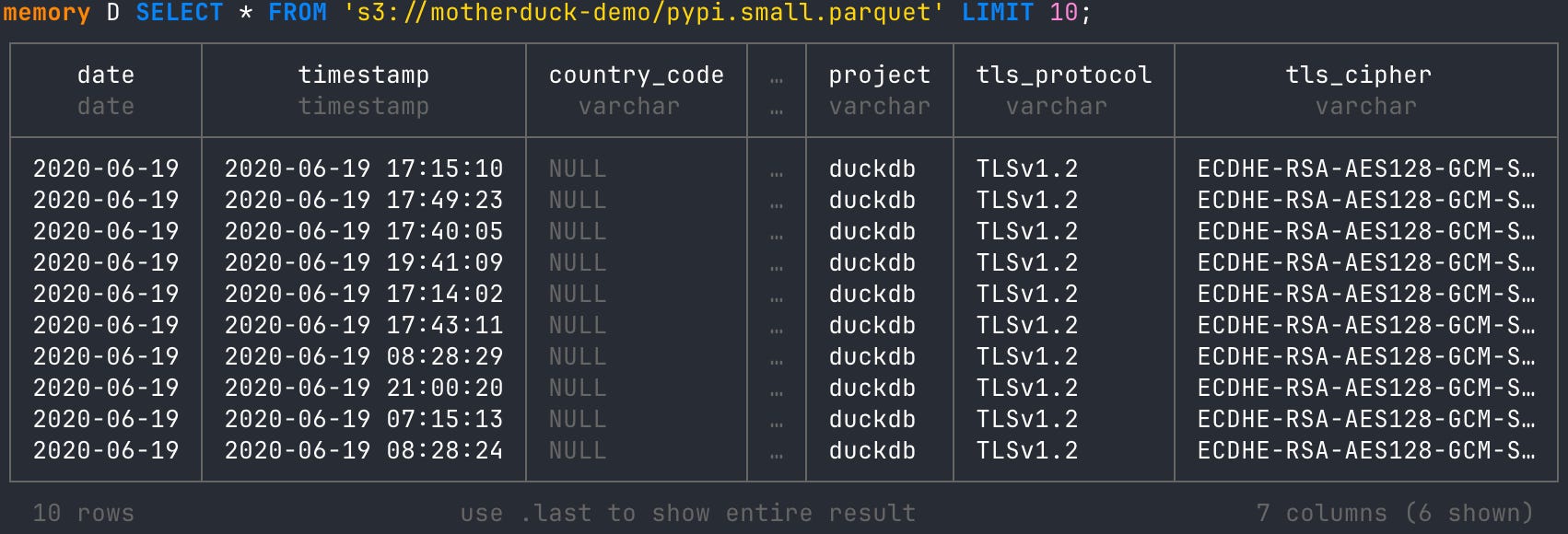
If you’re like me, then running the above code should make you giddy. You are simply passing an S3 URI into a SELECT statement within the DuckDB CLI. If you needed secrets, they were already set up locally, so you didn’t need to worry about creating an ‘.env’ file. On top of that, DuckDB is inferring the file format from the file name and putting the URI within the necessary function (read_csv, read_parquet) without you needing to do it explicitly in the statement.
That is the definition of elegance!
If you have multiple Parquet files in a bucket URI, you can pass a wildcard in place of the file name. This will read all the data together. So effortless.
SELECT * FROM 's3://s3-public-test-data/*.parquet' LIMIT 10;Create a New Table With S3 Data
Reading the data is nice, but saving it to a table locally reduces S3 reads as a bottleneck and gives us even more efficiency gains when querying. You can either CREATE a new table or INSERT into a table.
## Create DuckDB table using S3 file
CREATE TABLE pypi AS SELECT * FROM 's3://motherduck-demo/pypi.small.parquet' LIMIT 10;

## Show tables in DuckDB database
SHOW TABLES;

## View new table created in DuckDB database
FROM pypi LIMIT 10;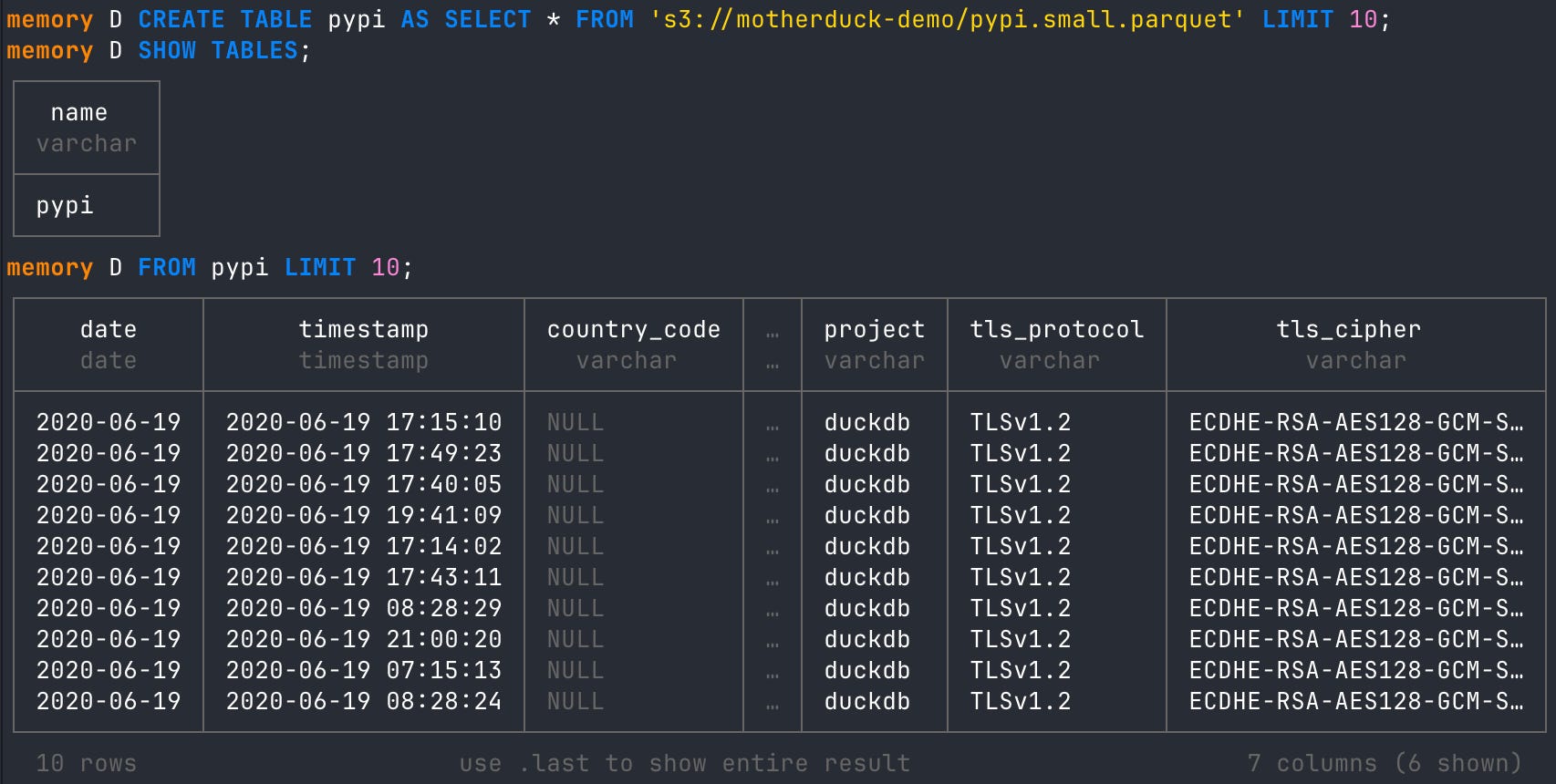
NOTE: The way we CREATE a new table or INSERT data is essentially the same for every data source use case.
Reading a File From a URL
Reading from an S3 bucket is super cool, but it does require setting up some secrets if it’s not public. A file sitting on a domain, however, can be passed into the same SELECT statement. For example, the famous penguins dataset is just a CSV file hanging out at a DuckDB domain URL. You can pass that to DuckDB like it’s nothing.
## read from a csv file sitting on a domain URL
SELECT * FROM 'https://blobs.duckdb.org/data/penguins.csv' LIMIT 10;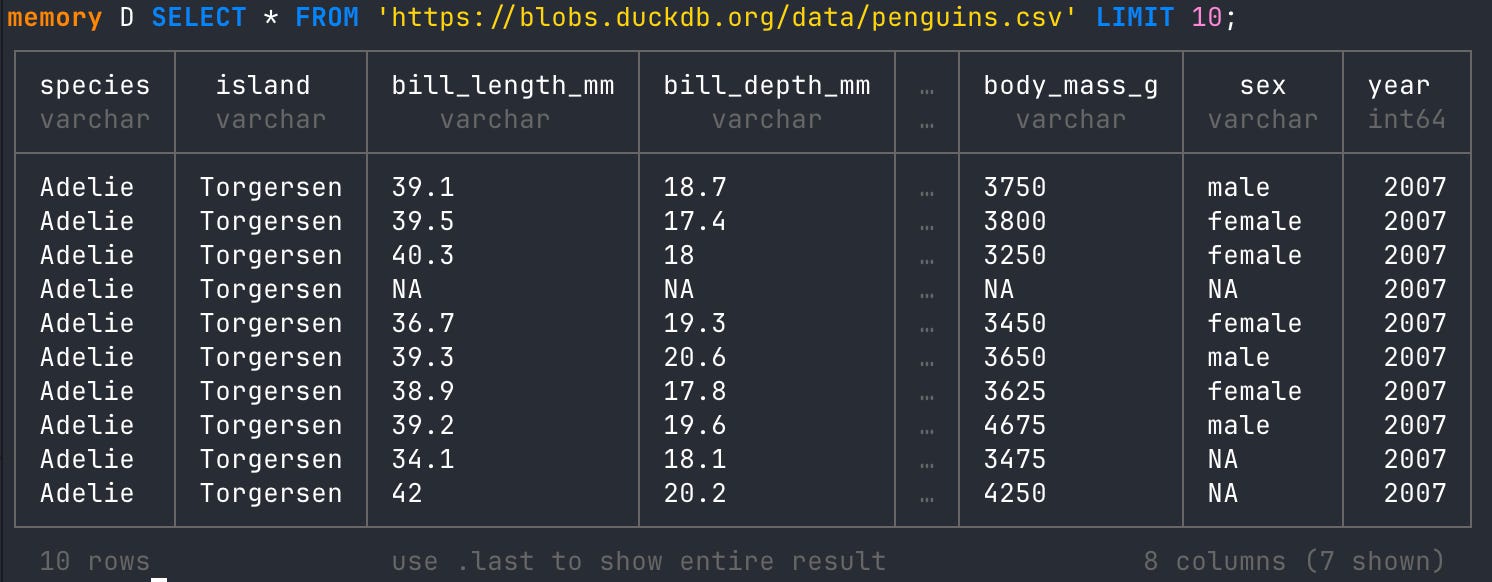
If you have a JSON file in a public Github folder like I do you can read the raw file URL as well and query it as needed. The shocking thing is how fast DuckDB is at parsing JSON. Incredible!
## read from a raw JSON file on Github
SELECT * FROM 'https://raw.githubusercontent.com/nhemerson/streamlit-cloud-run-demo/refs/heads/main/data/streaming_data.json' LIMIT 10;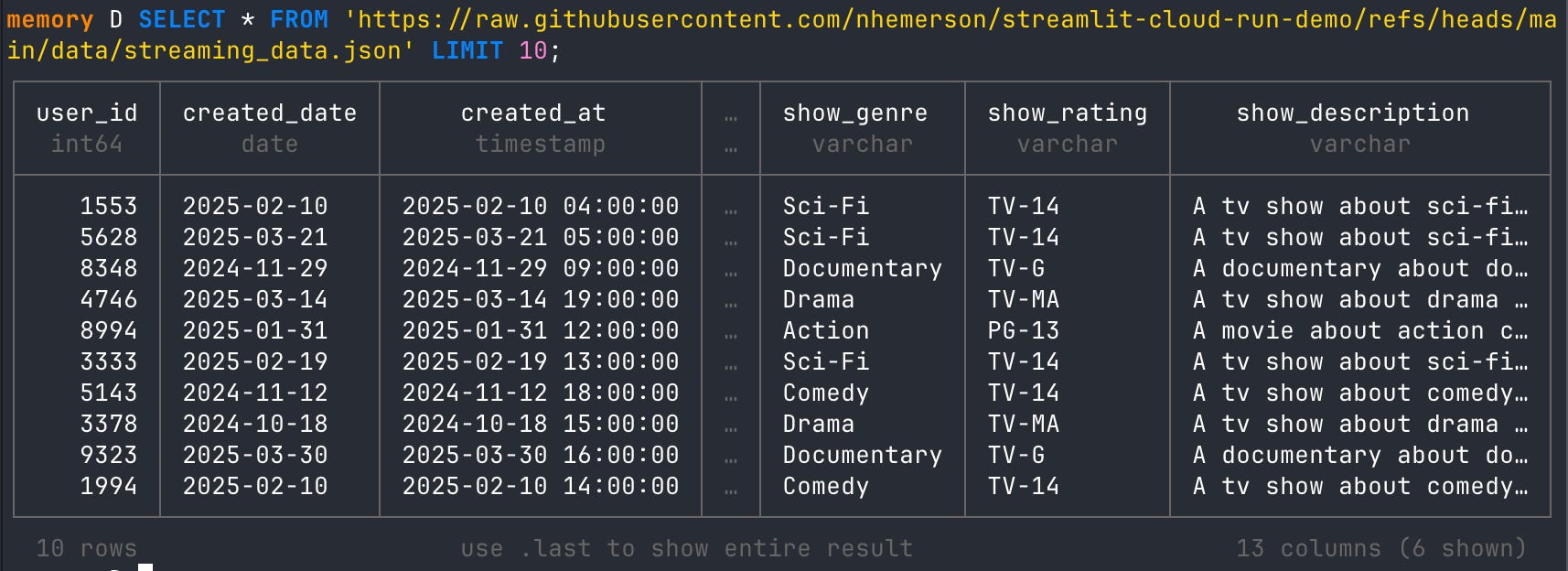
USE CASE: What DuckDB is offering here is a pretty incredible NoSQL option for data collection. It’s completely possible that you may have a system outputting and storing a JSON file somewhere you have access to, while another system is constantly storing data in S3. Both of those systems might be joinable, and you can call them both using DuckDB and store them locally for ad hoc work. Those tables you create can be easily pushed to a data warehouse to be stored later. DuckDB becomes the glue to all of that.
Read and Import From a Database
Reading from a storage bucket or a URL is pretty straightforward. You point to a destination and read the file at that path. Databases are a bit different because they have different designs and query languages. DuckDB gives you easy access to the most popular open-source databases out there (SQLite, MySQL, and Postgres). It also allows you to connect to lakehouses such as Iceberg, Delta Lake, and DuckLake. We will go over a few of the above-mentioned.
SQLite
SQLite is used literally everywhere, and you just don’t know it. When you need a transactional database for local app development, it’s hard to beat. DuckDB can read from a SQLite database effortlessly.
For most databases that you read with DuckDB, you’ll have to “ATTACH” them to your DuckDB instance. SQLite is no different, and you’ll see it in the other examples.
# attach local sqlite db to duckdb instance
ATTACH 'result.db' (TYPE sqlite);

# use that db with an alias
USE result;

# read from sqlite
FROM result LIMIT 10;

# create duckddb database from slqite
CREATE TABLE lite AS SELECT * FROM results;

# query new table
FROM lite LIMIT 10;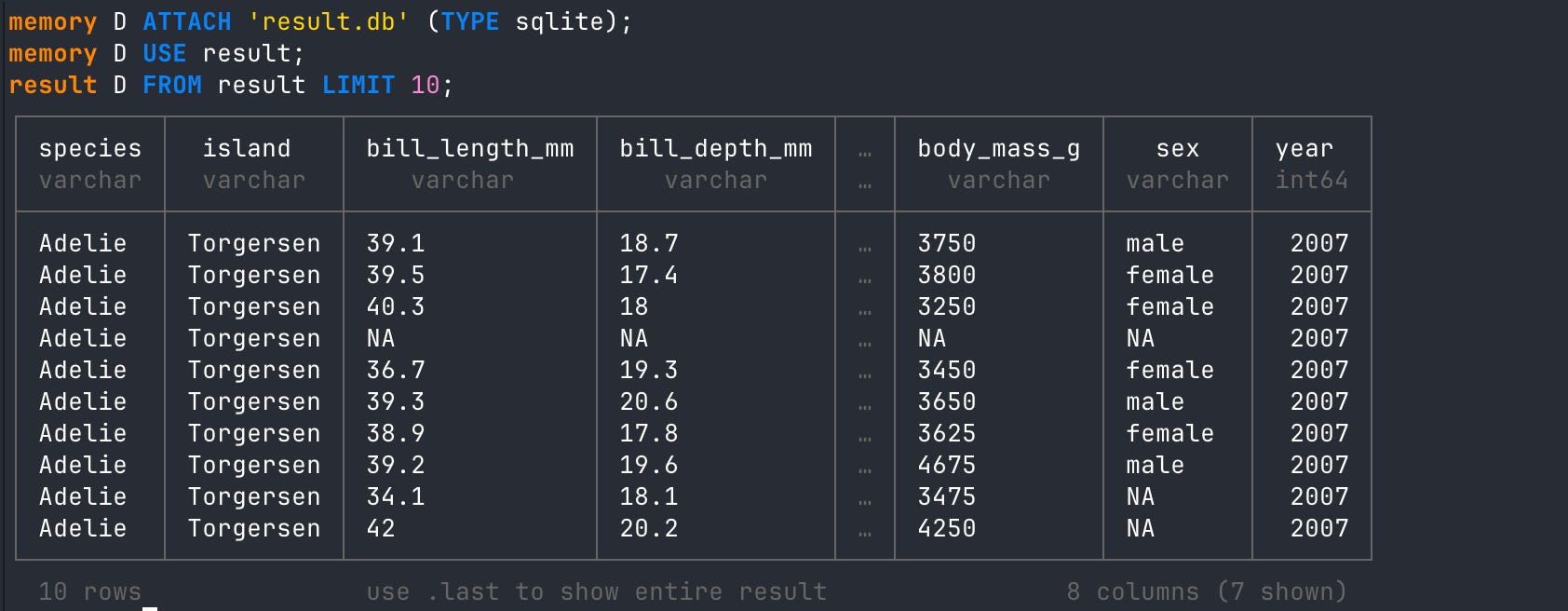
Postgres
This is the GOAT workhorse database and is surprisingly versatile in analytics as well. I used to never work with transactional databases, but since getting more intimate with production-level DuckLake, I’ve grown to love Postgres.
Just like SQLite, you will ATTACH a Postgres instance. I have a Supabase db that I’ll connect here.
NOTE: ADBC is also very good at reading from Postgres tables and returning results to DuckDB.
# attach a supabase postrgres table to local DuckDB
ATTACH 'postgresql://postgres.xxxxx:your_password@aws-0-region.pooler.supabase.com:6543/postgres' AS db (TYPE POSTGRES);

# query postgres table
SELECT * FROM db.public.streaming_data LIMIT 5;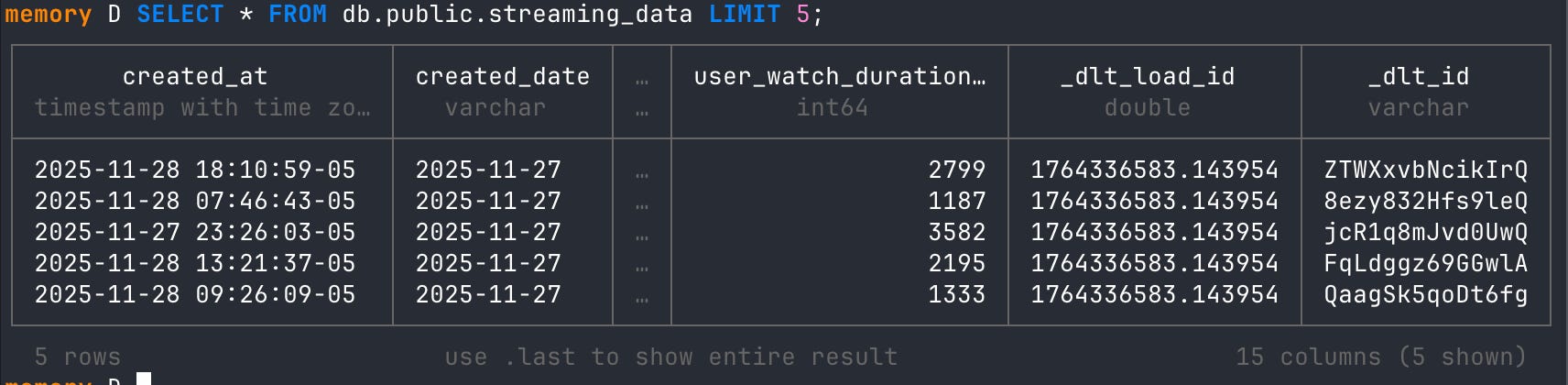
DuckLake
Maybe not surprisingly, DuckDB can connect to the three main lakehouse designs (Iceberg, Delta, DuckLake). DuckLake (built on top of DuckDB) is an easy choice for trying out this connection pattern. You attach a DuckLake catalog just like you do a database above, and you can now query Parquet files in a folder as if it were a database.
I’ve got a DuckLake catalog running on a local Postgres database that we can attach to and read from. If you want to dig deeper into how to use DuckLake, read my article on it.
# install and load ducklake extension
INSTALL ducklake;
LOAD ducklake;

# attach ducklake postgres catalog
ATTACH 'ducklake:postgres:dbname=ducklake_v1 host=localhost' AS wh
             (DATA_PATH './ducklake_data', AUTOMATIC_MIGRATION TRUE);

# use the wh alias
USE wh;

# show all tables in the ducklake
SHOW TABLES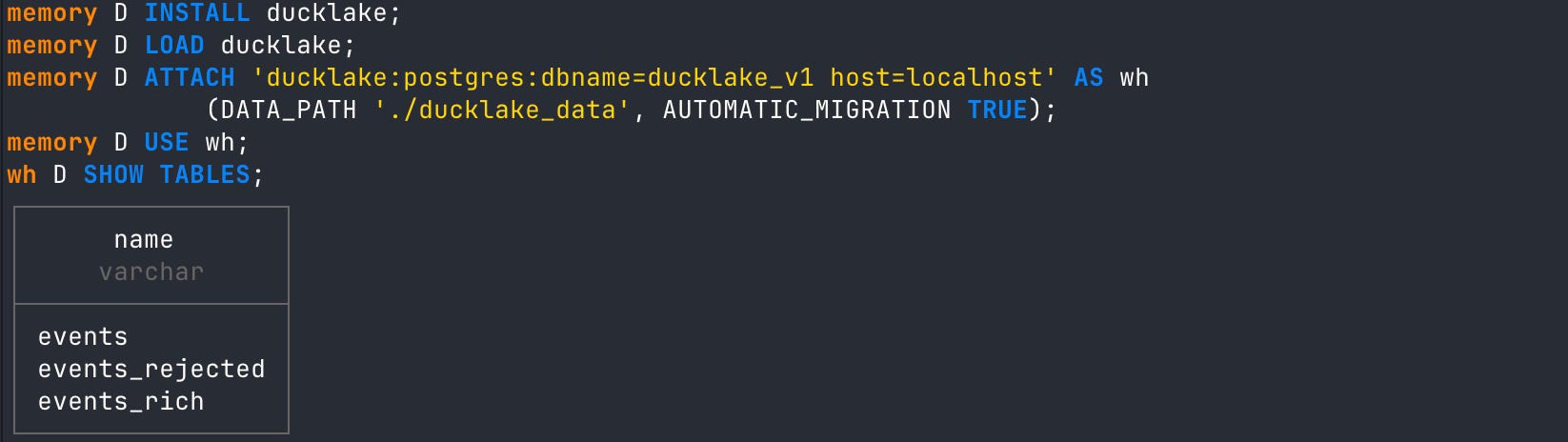
Read and Import Next Gen Formats
Two newcomers to DuckDB’s core extensions are the Lance lakehouse and the Vortex file format. These offer next-gen query access and go beyond Parquet’s design, respectively.
Vortex
This is an up-and-coming columnar file format that likes to make fun of Parquet, which is kinda funny to read. But it also markets itself as being able to accomplish much faster reads.
DuckDB has a core extension that allows you to write Vortex files and read from them. It’s as simple as that.
# install and load the vortex extension
INSTALL vortex;
LOAD vortex;
Creating a Vortex file normally involves their own CLI or Python but the DuckDB extension allows you to do this.
# turn a local parquet file into a vortex file
COPY (SELECT * FROM 'result.parquet') TO 'my.vortex' (FORMAT vortex);
Then you can read from that vortex file without needing to turn it back into something else like a PyArrow table.
# read from local vortex file
SELECT * FROM read_vortex('my.vortex');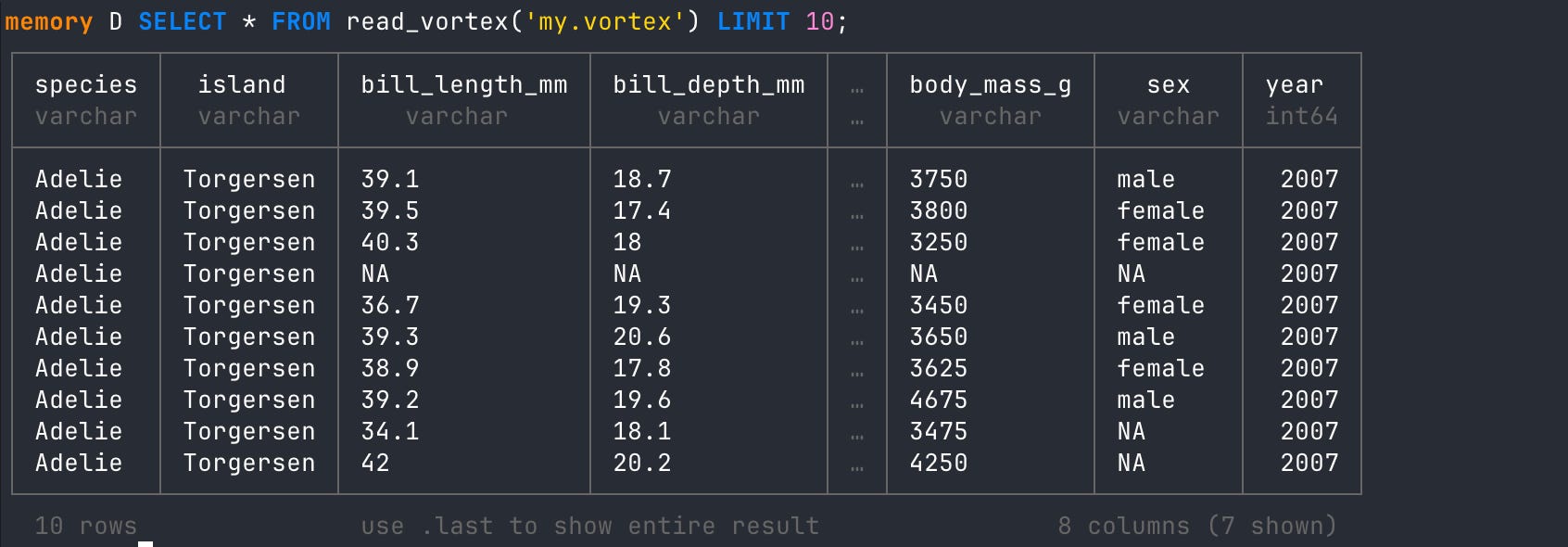
Lance
Lance is a modern lakehouse format optimized for ML/AI workloads, with native cloud storage support. I normally set up a Lance lakehouse using Python. If you’re interested in creating a simple one from a PyArrow table, here’s the code.
import pyarrow as pa
import lancedb

# Create a PyArrow table in memory
table = pa.table({
'id': [1, 2, 3, 4, 5],
'name': ['Alice', 'Bob', 'Charlie', 'David', 'Eve'],
'score': [95.5, 87.2, 92.1, 78.9, 88.3]
})

# Write to LanceDB file locally
db = lancedb.connect('./my_lancedb')  # Creates a directory
db.create_table('my_data', data=table, mode='overwrite')
lance.write_dataset(table, "test.lance")

# If you want to access it later:
loaded_table = db.open_table('my_data').to_arrow()
print(loaded_table)
The above creates a folder structure similar to what you’d see for Iceberg or DuckLake. But you can also natively use DuckDB to create and query the LanceDB file without all the extra structure. Pretty mind-blowing.
# install and load lance duckdb extension
INSTALL lance;
LOAD lance;

## create and write the Lance dataset using COPY
COPY (
    SELECT 1::BIGINT AS id, 'Alice'::VARCHAR AS name, 95.5::DOUBLE AS score
    UNION ALL
    SELECT 2::BIGINT AS id, 'Bob'::VARCHAR AS name, 87.2::DOUBLE AS score
    UNION ALL
    SELECT 3::BIGINT AS id, 'Charlie'::VARCHAR AS name, 92.1::DOUBLE AS score
    UNION ALL
    SELECT 4::BIGINT AS id, 'David'::VARCHAR AS name, 78.9::DOUBLE AS score
    UNION ALL
    SELECT 5::BIGINT AS id, 'Eve'::VARCHAR AS name, 88.3::DOUBLE AS score
) TO './test.lance' (
    FORMAT lance,
    MODE 'overwrite'
);
# read all data from the lance table
SELECT * FROM './test.lance';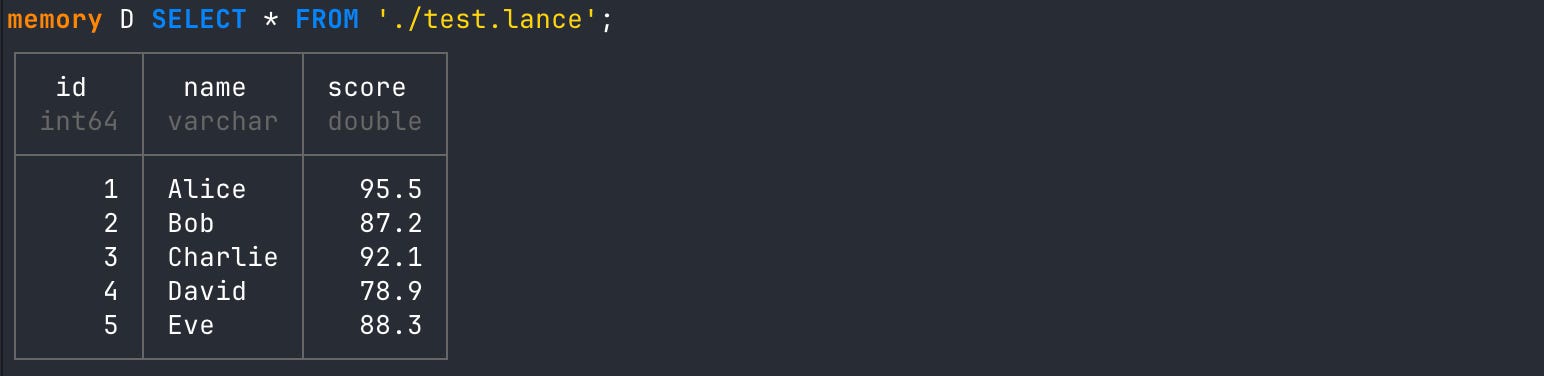
Lance is a multimodal lakehouse, which means you can save different types of data in it, like vector embeddings, so you can do text search. Below is Python code you can use to create database that stores sentences with embeddings.
import lancedb

# create/connect to local DB folder
db = lancedb.connect(”./lancedb”)

# sample data (vectors + text)
data = [
    {”text”: “I love machine learning”, “vector”: [0.1, 0.2, 0.3]},
    {”text”: “Databases are cool”, “vector”: [0.2, 0.1, 0.4]},
    {”text”: “I enjoy hiking outdoors”, “vector”: [0.9, 0.8, 0.7]},
    {”text”: “Artificial intelligence is fascinating”, “vector”: [0.5, 0.6, 0.7]},
    {”text”: “Cursor is a cool code editor”, “vector”: [0.3, 0.4, 0.2]},
    {”text”: “Nature walks calm my mind”, “vector”: [0.8, 0.7, 0.6]},
    {”text”: “Coffee and code go well together”, “vector”: [0.2, 0.3, 0.5]},
    {”text”: “Python is an awesome language”, “vector”: [0.6, 0.3, 0.8]},
    {”text”: “Reading research papers is fun”, “vector”: [0.4, 0.7, 0.9]},
    {”text”: “Music helps me concentrate”, “vector”: [0.7, 0.8, 0.5]},
]

# create table
db.create_table(”docs”, data=data, mode=”overwrite”)
We can also do this with DuckDB like so.
## Load the lance extension (if not already loaded)
LOAD lance;

## Create and write the Lance dataset with vector embeddings
COPY (
    SELECT
        'I love machine learning'::VARCHAR AS text,
        [0.1, 0.2, 0.3]::FLOAT[3] AS vector
    UNION ALL
    SELECT 'Databases are cool', [0.2, 0.1, 0.4]::FLOAT[3]
    UNION ALL
    SELECT 'I enjoy hiking outdoors', [0.9, 0.8, 0.7]::FLOAT[3]
    UNION ALL
    SELECT 'Artificial intelligence is fascinating', [0.5, 0.6, 0.7]::FLOAT[3]
    UNION ALL
    SELECT 'Cursor is a cool code editor', [0.3, 0.4, 0.2]::FLOAT[3]
    UNION ALL
    SELECT 'Nature walks calm my mind', [0.8, 0.7, 0.6]::FLOAT[3]
    UNION ALL
    SELECT 'Coffee and code go well together', [0.2, 0.3, 0.5]::FLOAT[3]
    UNION ALL
    SELECT 'Python is an awesome language', [0.6, 0.3, 0.8]::FLOAT[3]
    UNION ALL
    SELECT 'Reading research papers is fun', [0.4, 0.7, 0.9]::FLOAT[3]
    UNION ALL
    SELECT 'Music helps me concentrate', [0.7, 0.8, 0.5]::FLOAT[3]
) TO './docs.lance' (
    FORMAT lance,
    MODE 'overwrite'
);
Reading this new Lance database shows us how our data is formatted.
## Read it back to verify
SELECT * FROM './docs.lance';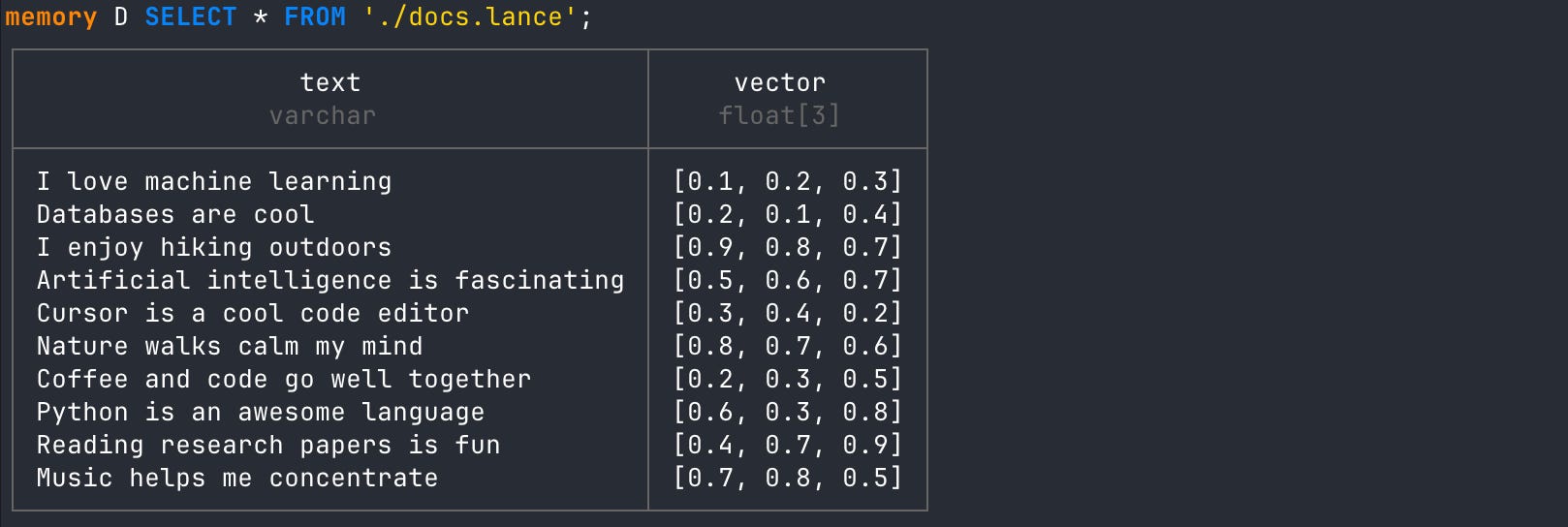
We can then pass an array of vectors to DuckDB using the lance_vector_search() function, which will find the five nearest neighbors in the data. A literal vector search that happens right out of the box!
FROM lance_vector_search(
  'docs.lance', 'vector',
  [0.1, 0.2, 0.3]::FLOAT[3],
  k = 5,
  prefilter = true
);
You can also use DuckDB for full-text search. It will return everything that contains that word. The lance_fts() function is case-sensitive, so you could lowercase the text column first if you wanted to.
FROM lance_fts(
    'docs.lance',
    'text',
    'code',
    k = 10,
    prefilter = true
)
ORDER BY _score DESC;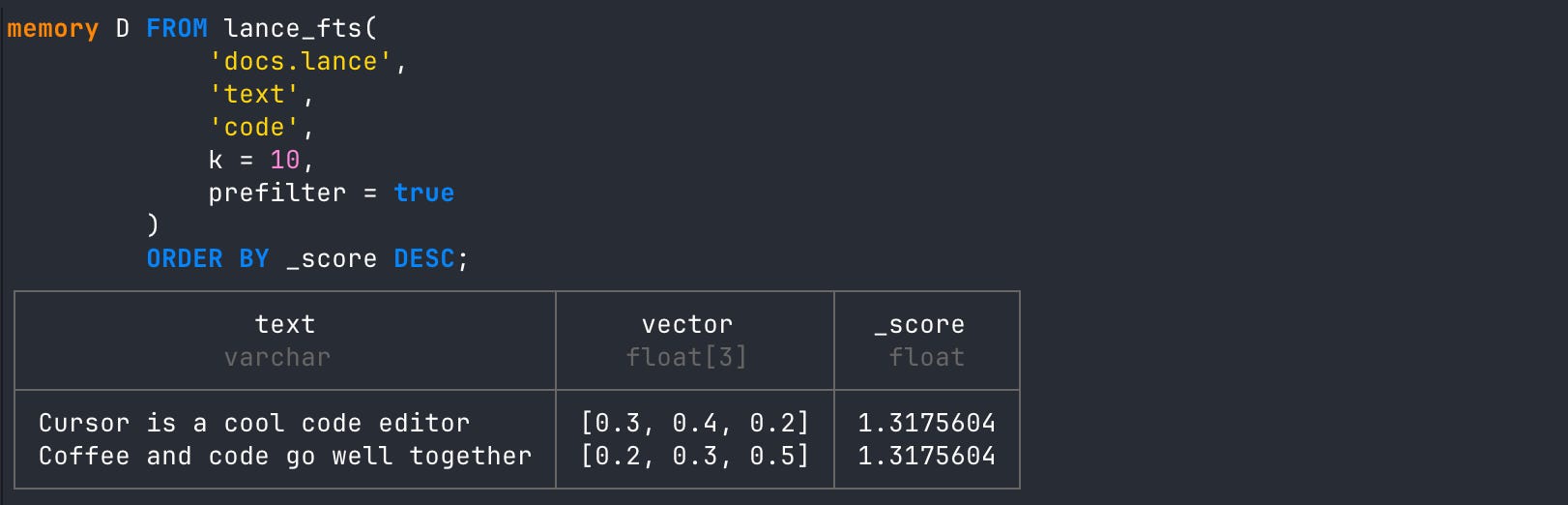
Or do a hybrid search using both vector and full text!
FROM lance_hybrid_search('docs.lance',
                         'vector', [0.1, 0.2, 0.3]::FLOAT[3],
                         'text', 'code',
                         k = 10, prefilter = false,
                         alpha = 0.5, oversample_factor = 4)
ORDER BY _hybrid_score DESC;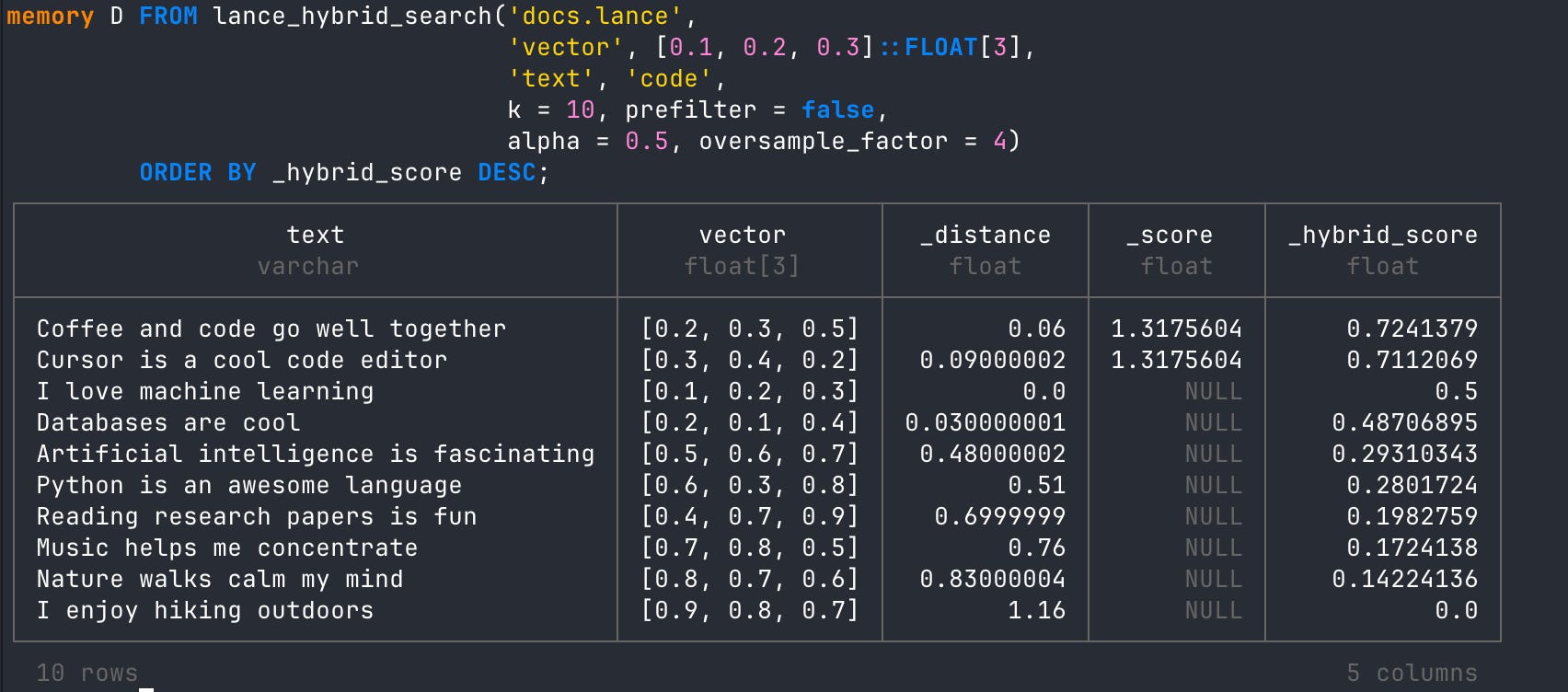
This was Really Cool, So What’s Next?
This is the second installment of my series on DuckDB basics and there’s only more to come! You’ll get a closer look into what DuckDB’s aggregation functions look like when doing real compute operations and we’ll start diving into the Python API for DuckDB. So some real world integrations will be coming soon!

Hi, my name is Hoyt. I’ve spent different lives in Marketing, Data Science and Data Product Management. Other than this Substack, I am the founder of Early Signal. I help data tech startups build authentic connections with technical audiences through bespoke technical content and intentional distribution. Are you an early stage start up or solopreneur wanting to get creative with your technical content and distribution strategy? Let’s talk!