
DuckDB Basics: Using SQL in the CLI
The first place to start with DuckDB is in the terminal

This is the very first of what should be many an article about the the basics of DuckDB. I’m incredibly excited to dive into the different aspects of this transformational technology. Let’s get to it!
Note: This article assumes you know the basics of a terminal, curl commands and how databases work for the most part. But I do my best to bring you in if you don’t.
There is a tremendous amount of information about DuckDB out there, specifically at duckdb.org. I will be pulling extensively from the docs there, from my own work, and from some discussions with Claude or ChatGPT. My goal is to sift through all the docs out there and put together the 101 course I wish I’d had when I first got started with DuckDB. This should help anyone out there who is just trying to wrap their head around an analytical database named after a waterfowl.
What is DuckDB at a High Level?
DuckDB is a relational database management system (RDBMS). That means it is a system for managing data stored in relations. A relation is essentially a mathematical term for a table.
Each table is a named collection of rows. Each row of a given table has the same set of named columns, and each column is of a specific data type. Tables themselves are stored inside schemas, and a collection of schemas constitutes the entire database that you can access.1
Under the hood, DuckDB stores data in a columnar format, meaning values from the same column are stored together rather than row by row. This layout is a big reason for its speed on analytical workloads. Most analytical queries only need a small number of columns from a table, not every field in each row. Because DuckDB stores data column by column, it can load just the specific columns a query references instead of reading entire rows. This reduces the amount of data pulled from memory or disk and means the system spends time only on the values that actually matter for the computation. The result is much higher throughput for scans, aggregations, and joins, especially on large datasets where minimizing data movement is everything.
What makes DuckDB specifically brilliant is the way it interacts with all types of other systems. It reads local Parquet files out of the box, with extensions for new file formats like Lance and Vortex. It allows you to pass a string into a FROM clause in SQL that lets you read directly from an S3 bucket. You can attach a lakehouse to it (DuckLake) and query at will. It accepts Arrow tables as an input and outputs Arrow natively.
That is just the tip of the iceberg, and there’s a very good chance that whatever your data use case is, DuckDB might have a solution.
Note: I also have a companion video for this article if you prefer
Let’s not get ahead of ourselves
But before we go off into DuckLake inlining and Vortex read benchmarks, let’s start with one of the easiest and most basic ways to get acquainted with DuckDB: the CLI.
So let’s just get into it. Go download that CLI!1
curl https://install.duckdb.org | shDownloading the CLI is a system wide install, so any terminal you use (whether system terminal or in VSCode or Cursor) will let you just bring up duckdb by simply typing ‘duckdb’ in it.
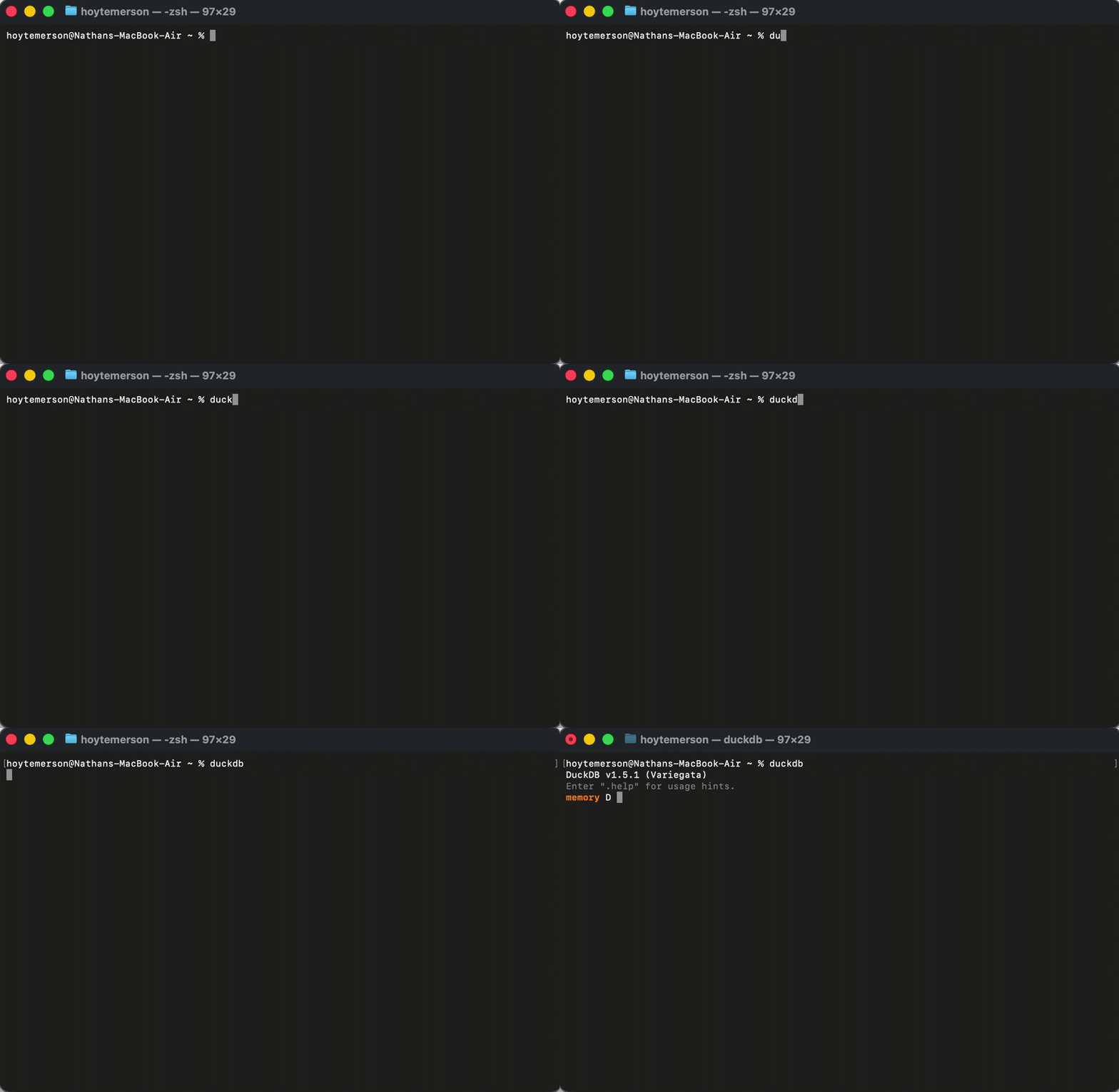
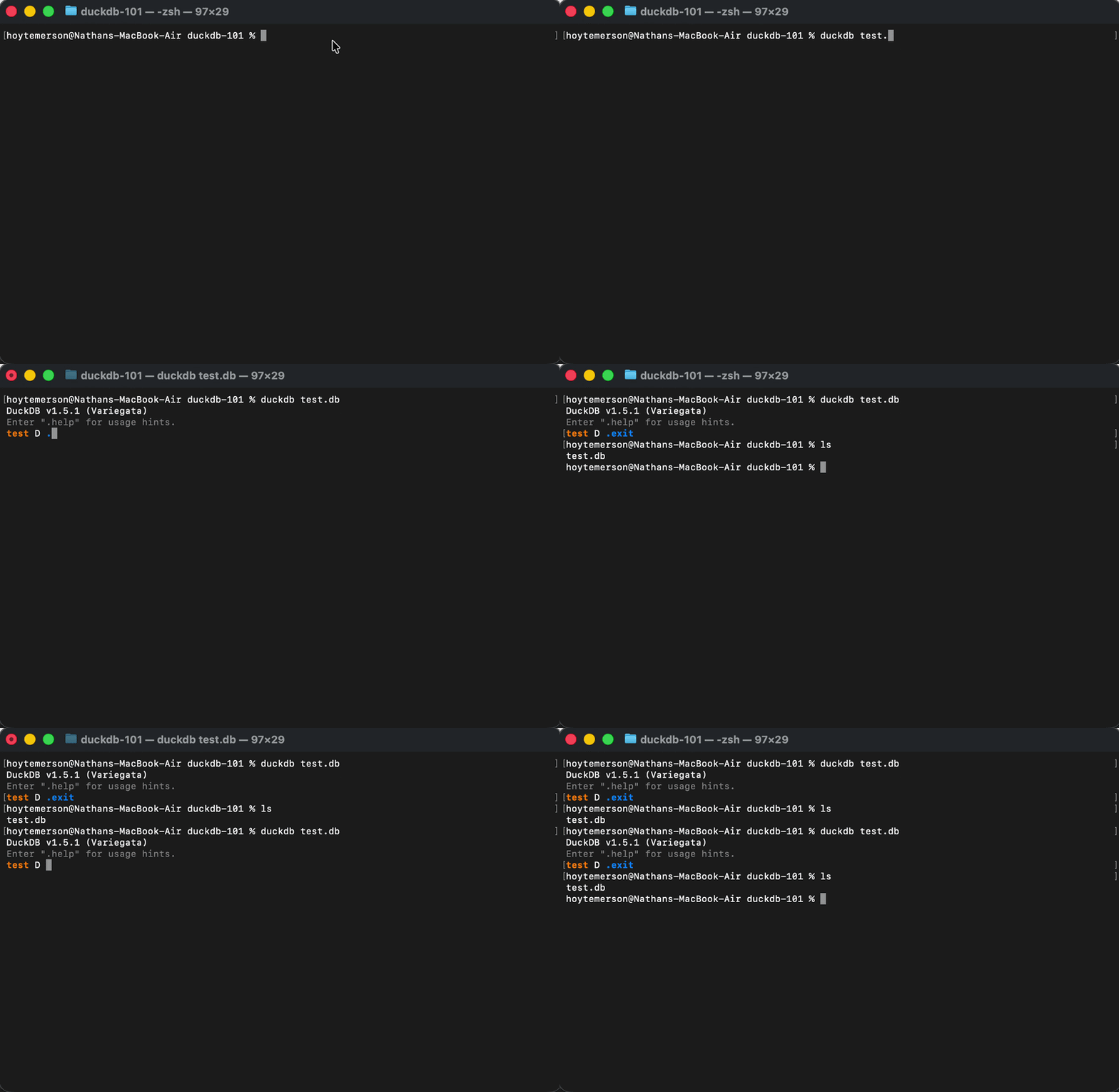
Doing this creates an in-memory instance of DuckDB. This means that the instance is not persistent; it just exists in the moment in your terminal and will be deleted once you close the terminal or exit out. If you add a filename next to 'duckdb', it will materialize the DuckDB instance into a DuckDB database file in the current working directory.
Importing Data into DuckDB is Incredibly Easy
Working with a materialized duckdb file is very nice because the data becomes persistent. For example, we can add a TPC-H table to the duckdb database we made above and it will now be stored there in the file locally.
duckdb test.db

call dbgen(sf=1);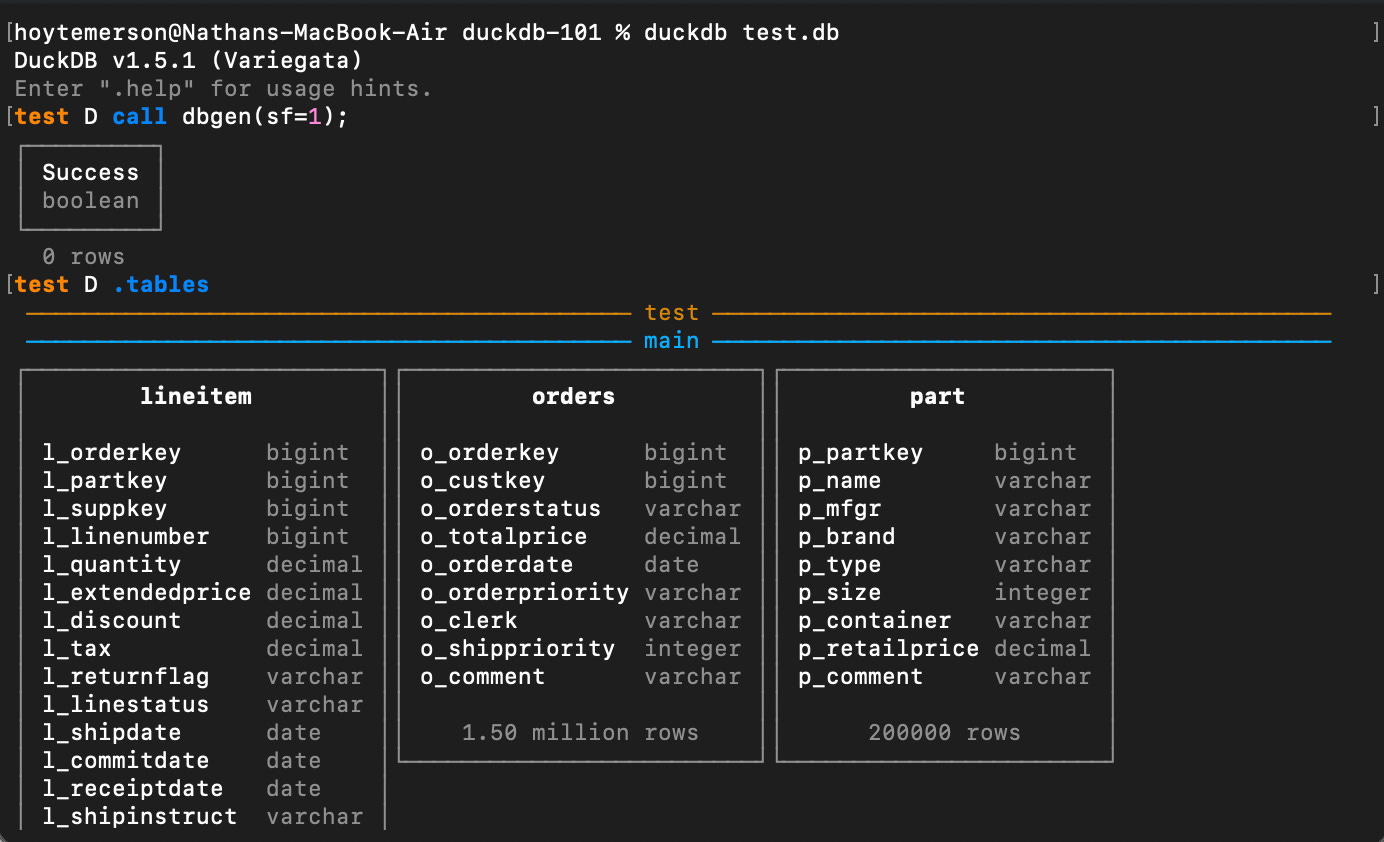
The above is the easiest way to get data into your DuckDB instance so you can start to test running SQL on it. As I noted above, you can “easily” read a Parquet file locally or on S3, as well as a CSV, Lance, or Vortex file, and add that data as well. But this is much more of a “101” workflow.
How Do I Use SQL in the DuckDB CLI?
This is where everything gets a lot more fun. Now that you have tables in your DuckDB database, you can query them directly in the terminal. But before you do that, it would behoove you to know a few dot commands to get around the data and CLI faster.
-- This shows you the tables in your duckdb database
.tables

-- This will show you the CREATE TABLE statement of a table
.schema [TABLE]

-- This will list all attached databases and their associated files
.databases
The dot commands give you a nice quick way to see what you’re working with. For the TPC-H tables we added to our DuckDB instance, let’s now execute a SQL query over the lineitem table. We will do the easiest of easy ways.
-- This is the normal way to do this
SELECT * FROM lineitem LIMIT 10;

-- DuckDB let's you also just say FROM when just a read
FROM lineitem LIMIT 10;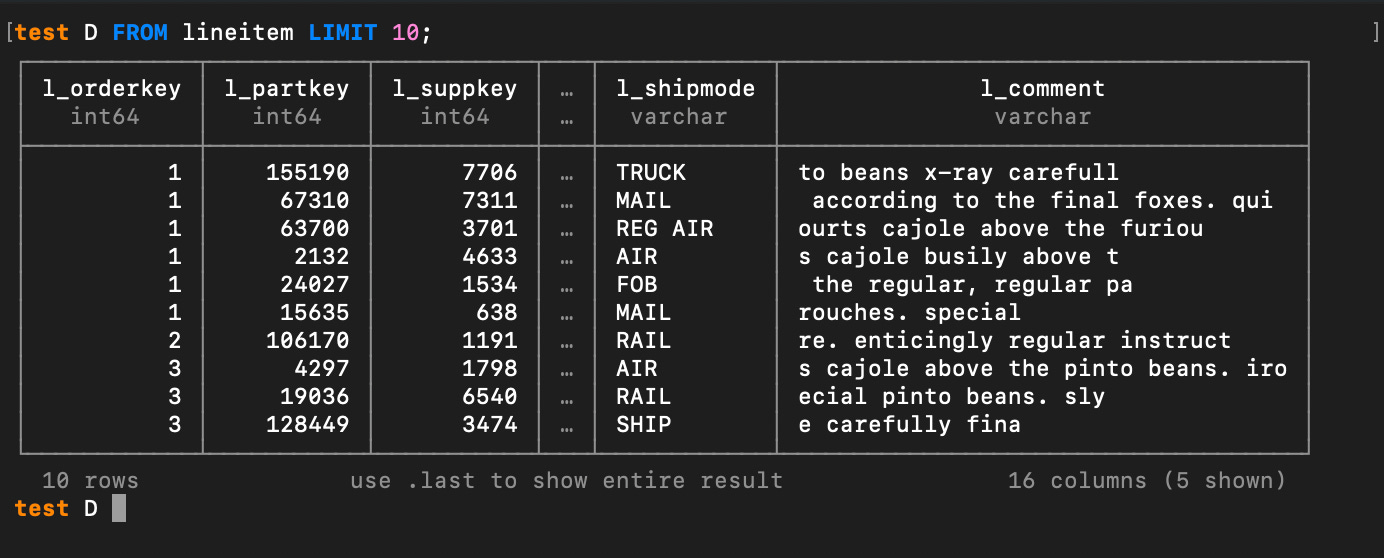
Now that we have “broken the ice” let’s get cheeky and do an aggregation on the data. How about counting the rows in the lineitem table.
SELECT COUNT(*) FROM lineitem;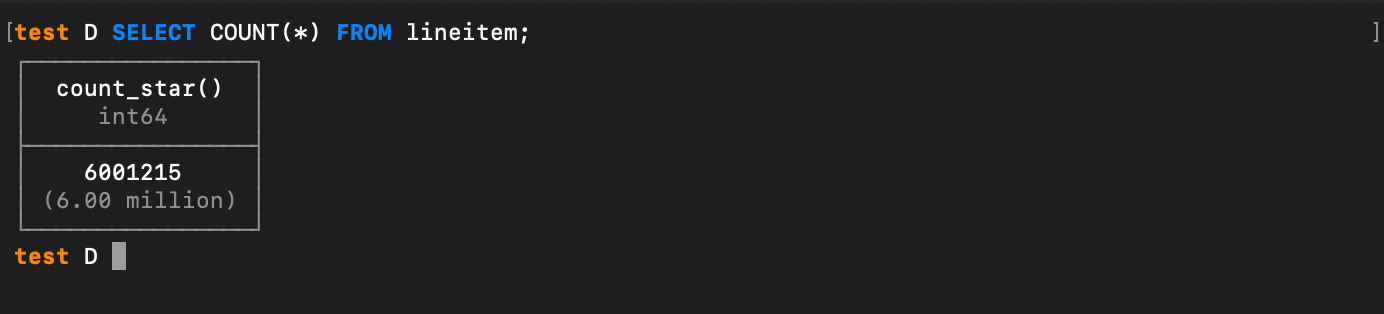
So now you understand what we are dealing with here. The lineitem table alone is six million rows. That is all being saved right in your local DuckDB file and can be queried at any moment. I REALLY hope the gears are starting to turn now that you see this.
I’d like to show off the performance of DuckDB. The TPC-H tables have primary keys we can join on. Let’s join the large lineitem table with the orders table and on the orderkey column.
SELECT
li.*,
o.o_comment
FROM lineitem li
JOIN orders o
ON li.l_orderkey = o.o_orderkey;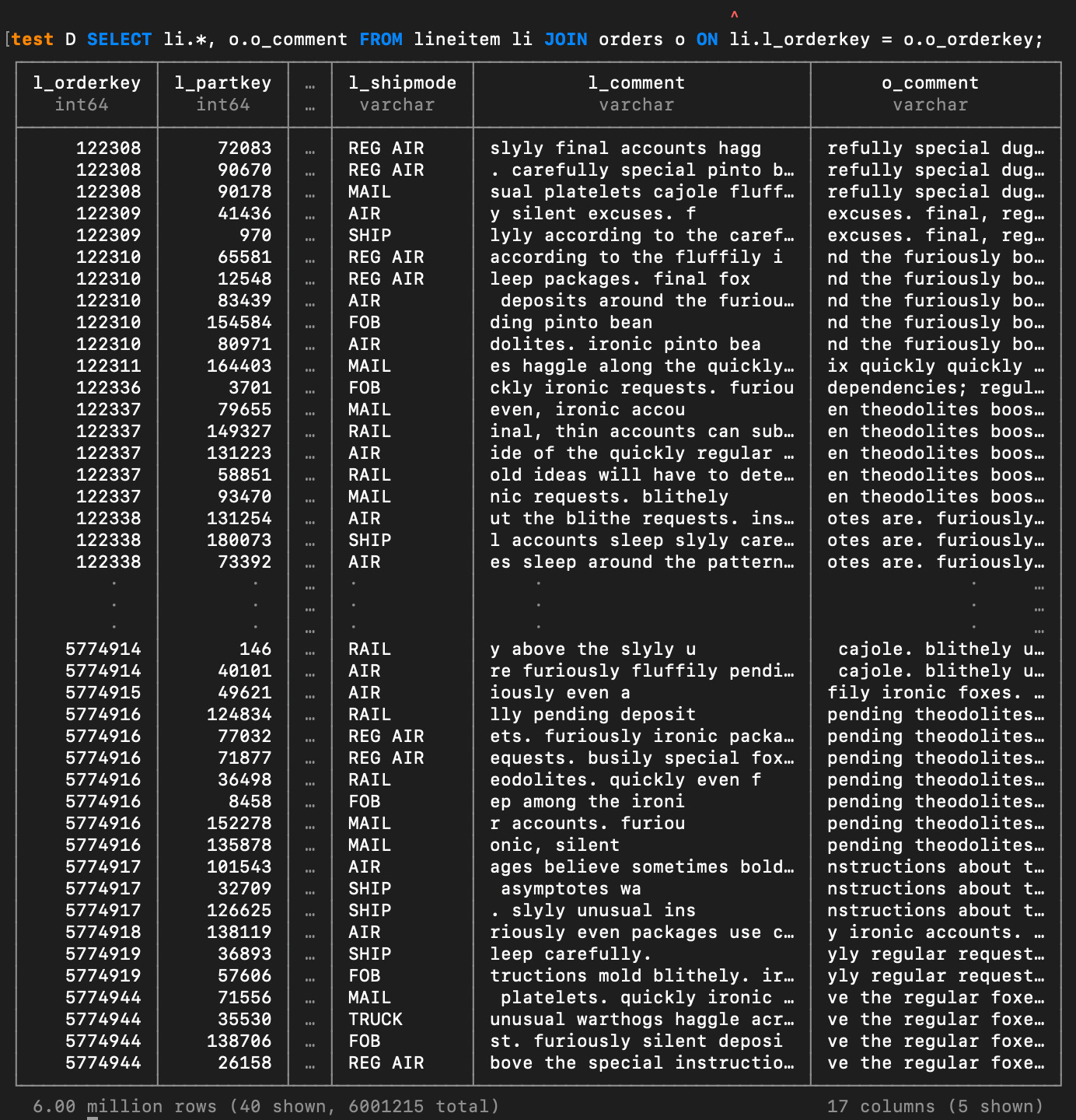
I don’t have a good way to time CLI commands (NOTE you can use the dot command
”.timer” see Matt Martin’s comment below), but if you’ve used a data warehouse like BigQuery, I dare you to tell me that DuckDB doesn’t run that join UNBELIEVABLY faster than BigQuery would—probably by a few seconds.
You can create a new table in your DuckDB instance using the lineitem table already in it. We can also take the opportunity to clean up the column names.
CREATE OR REPLACE TABLE quantity_group
AS
SELECT
l_orderkey AS order_key,
l_quantity AS quantity
FROM lineitem;

SELECT * FROM quantity_group;
You can just as easily DROP TABLE if you’d like. Dropping a table in a local instance of DuckDB, by the way, is stress free.
DROP TABLE quantity_group;
SELECT * FROM quantity_group;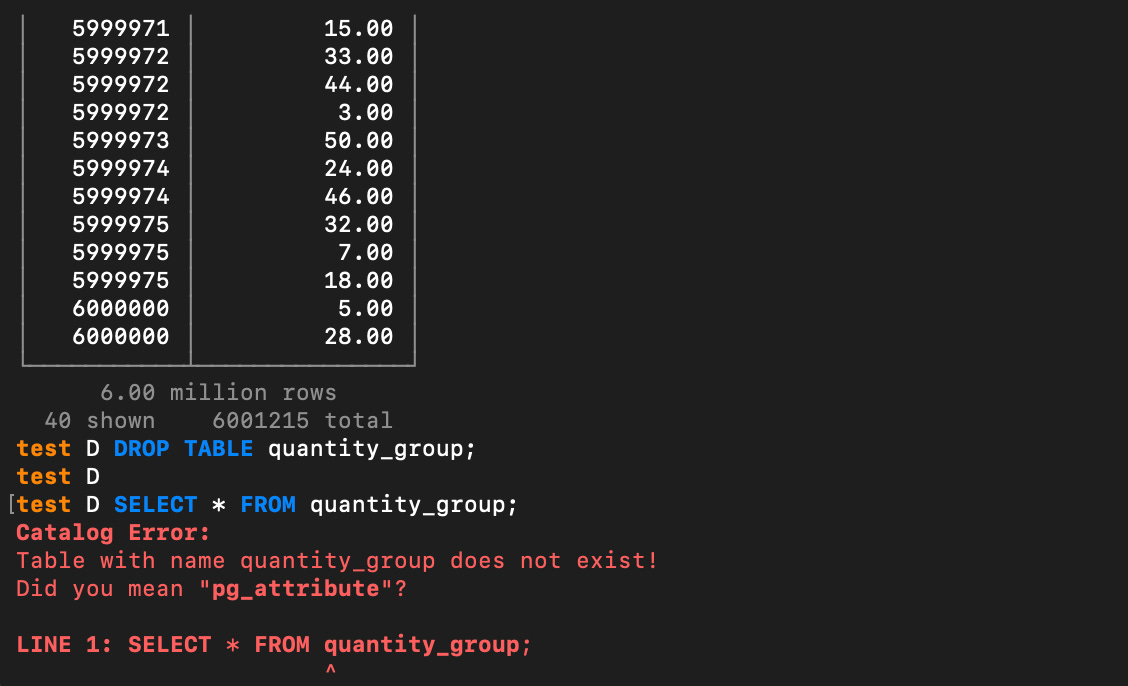
A gentle reminder, this is all happening in your terminal and on a local database file that has enterprise level capabilities. I’ll just let you marinate on that.
While we are here, let’s make a very simple table and then do an INSERT INTO that table:
CREATE TABLE cities (
    name VARCHAR,
    lat  DECIMAL,
    lon  DECIMAL
);
INSERT INTO cities
VALUES ('San Francisco', -194.0, 53.0);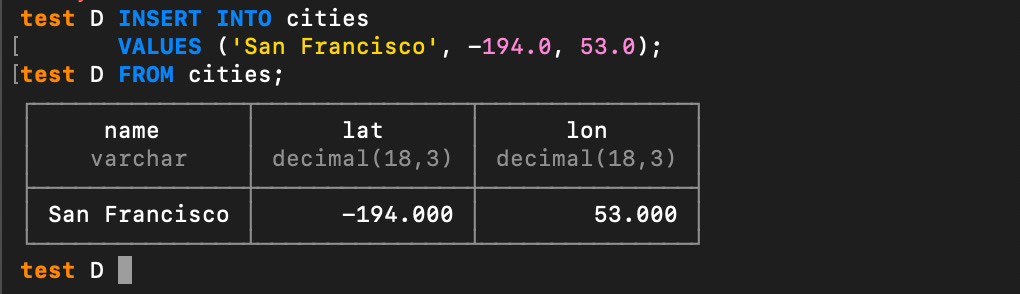
Reading and Exporting Files with DuckDB
So far you’ve seen pretty standard SQL operations being done on DuckDB. We used a command to bring in TPC-H and also created a small dataset from scratch and did an INSERT into that table.
That’s not going to blow anyone’s socks off, so let me get to the part that should fix that real quick. One of the coolest things about DuckDB is how you can pass it a string with a URL or URI to a file in a SQL statement—for instance, a Parquet or CSV file stored locally or in cloud storage like S3.
SELECT * FROM “/path/to/file.parquet”;Running this returns the same table output in your terminal as if you were reading from a DuckDB file. DuckDB is optimized for reading Parquet, so the read times are essentially the same between Parquet and DuckDB files. If you have AWS credentials set up locally in your terminal session, you can pass it a URI to a Parquet file in an S3 bucket and it will read it like it was just a local file.
As well, if a file is just sitting at a public URL, you can pass that to the FROM clause. For example, you can read the famous “Penguins Dataset” into memory by reading a CSV at a URL:
SELECT * FROM read_csv('https://blobs.duckdb.org/data/penguins.csv');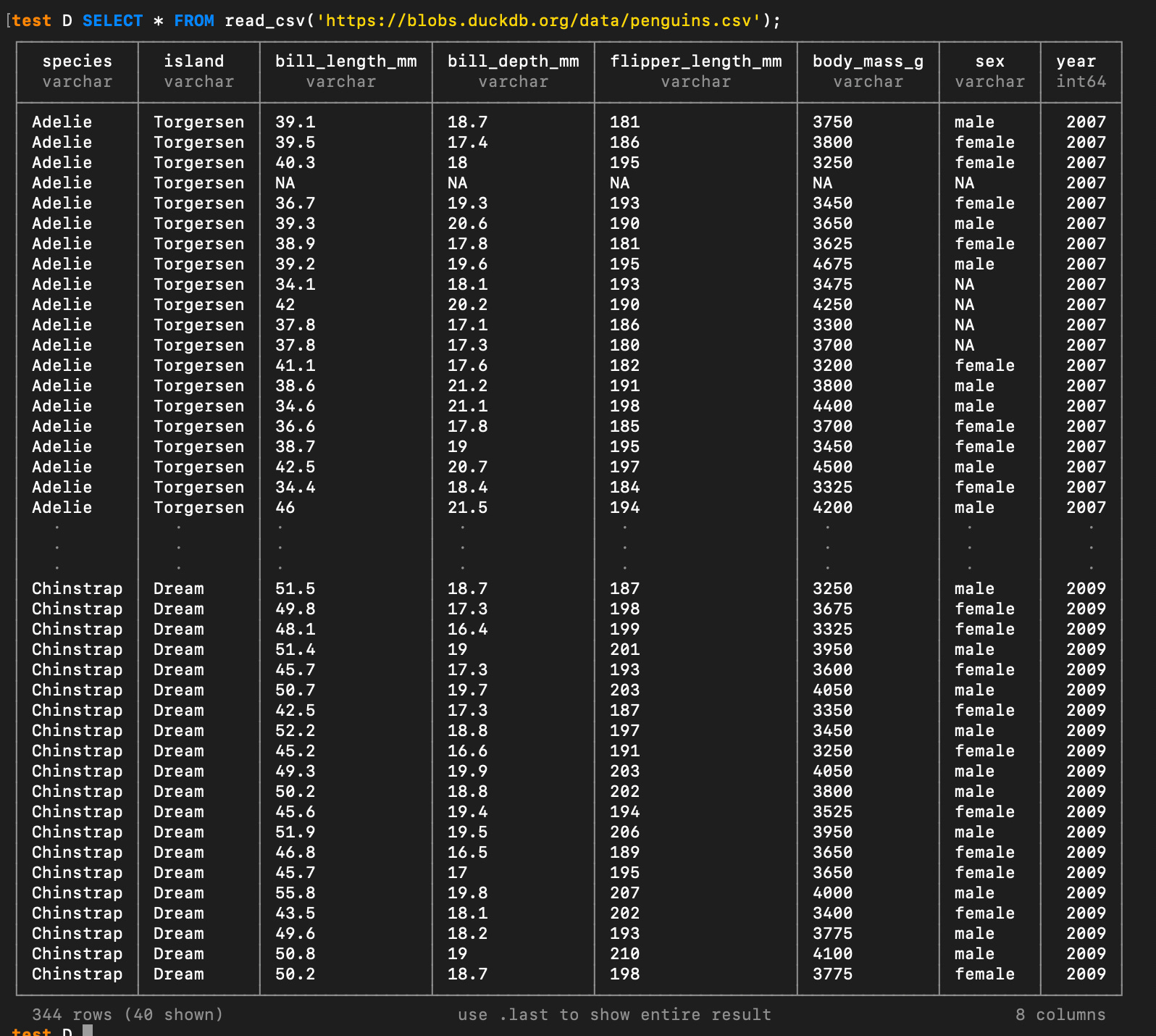
As you can see, there are a myriad of ways to read data into DuckDB. But there is also a number of ways you can output data as well. By default, you are working in a DuckDB database. However, if you end up with a useful and you’d like it exported to a file format different from your DuckDB file you can leverage the COPY command to export the output to the format and destination of your choice:
-- Note it's not required to specify the (FORMAT PARQUET) at the end
COPY (SELECT * FROM read_csv('https://blobs.duckdb.org/data/penguins.csv'))
TO '~/Documents/result.parquet' (FORMAT PARQUET);
This was Really Cool, So What’s Next?
Working with SQL in the CLI is just the tip of the iceberg! We will definitely go into dot commands in the CLI as well as some of the new CLI features since version v1.5. From there we will get into the Python API and start looking at ways DuckDB can be used in your scripts. And while we are at it we will probably spend some time on DuckDB internals for fun. Looking forward to writing more of these!

Hi, my name is Hoyt. I’ve spent different lives in Marketing, Data Science and Data Product Management. Other than this Substack, I am the founder of Early Signal. I help data tech startups build authentic connections with technical audiences through bespoke technical content and intentional distribution. Are you an early stage start up or solopreneur wanting to get creative with your technical content and distribution strategy? Let’s talk!
Or any way you prefer to download: https://duckdb.org/install/?environment=cli&platform=macos
Also a few other things to note:
1. The CLI is self-contained meaning no dependencies needed to be installed. It makes the process clean and easy
2. You mentioned timing commands. Simply run this dot command in the cli and then it will start providing execution times:
.timer on
Good stuff. As an fyi with the duck, if you are exporting to parquet, you no longer need to specify the format arg afterwards e.g. this just works:
Copy v_orders to ‘data.parquet’
Only time you’d have to put in additional args is if you want to specify row group thresholds